 Vobot Recorder
Features
Contact SupportHow to use the recording modes, recording transfer, transcription and summaries, Ask Vobot, the digital business card, and firmware updates.
Recording modes
Before you start recording, slide the mode switch to the right position. The CALL / NOTE shown in Vobot Recorder under "My Device › Recording Mode" are these two positions.
Phone Call (CALL, switch up)
Records phone calls. Attach the card to the back of your phone.
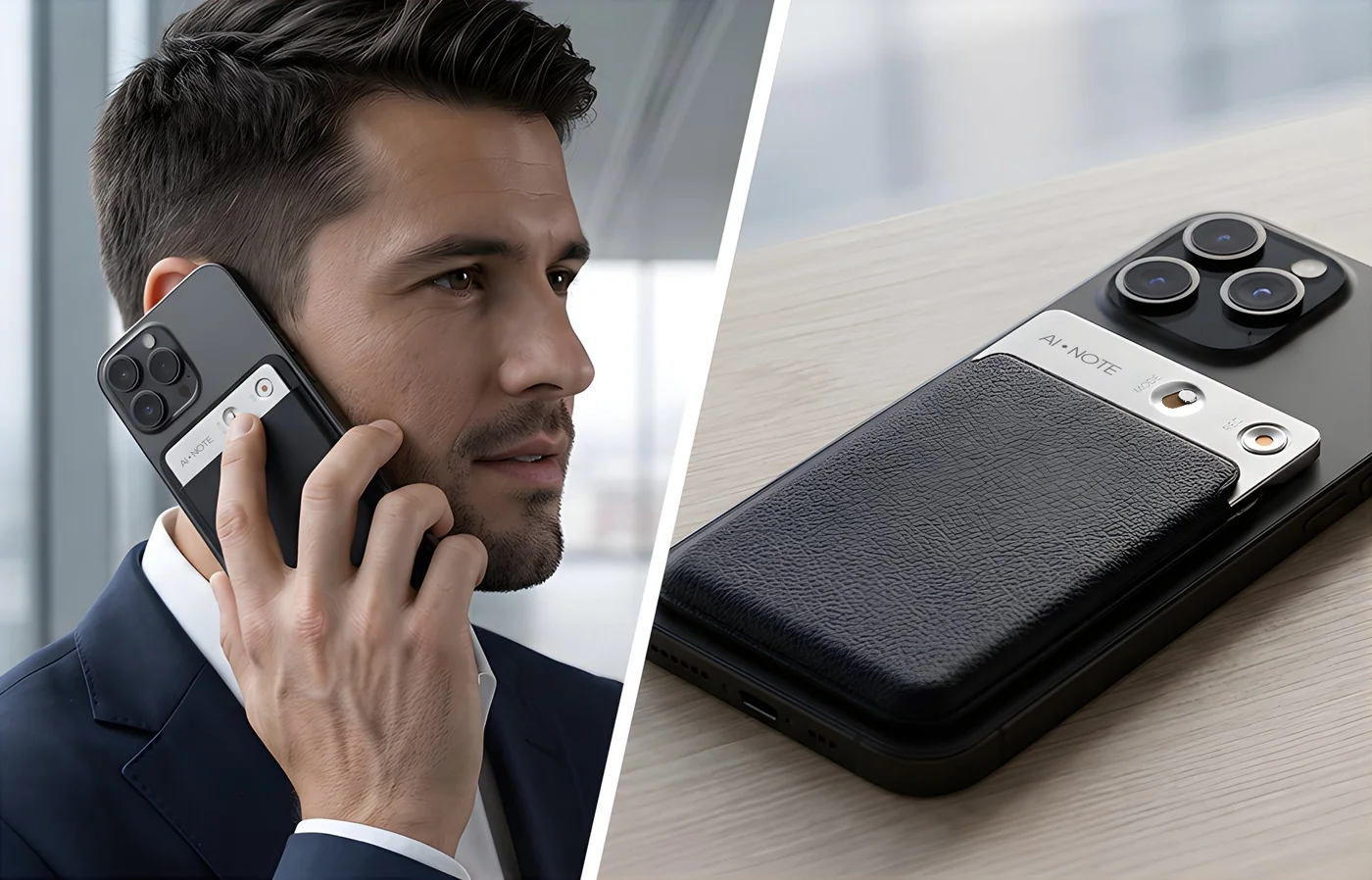
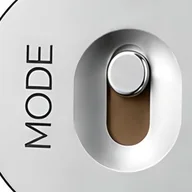
In-Person (NOTE, switch down)
Records meetings, interviews, classes, and other in-person conversations, from up to about 5 meters away.


Check the mode switch before recording
Phone Call (CALL) uses the bone conduction microphone; In-Person (NOTE) uses the regular microphones. Slide it up for phone calls and down for in-person conversations for the best pickup.
Start and stop recording
Hold the record button for about 2 seconds to start recording: the red light stays on and the card vibrates twice. Hold it for about 2 seconds again to stop: the red light goes off and the card vibrates once. You can also tap "Record" in Vobot Recorder.
The card records and stores audio on its own, so your phone doesn't need to be nearby. Transfer the recordings to the app later.
While the card is recording, transferring recordings, or updating its firmware, hold off on changing the settings on the "My Device" page until it finishes. See Can't change settings.
Transfer recordings to the app
Automatic Bluetooth sync
When the card is connected to Vobot Recorder, recordings transfer to the app automatically over Bluetooth, and the home screen shows the progress.
Need help with transfers? See Home screen keeps showing "Transferring recordings from…".
Wi-Fi Fast Transfer
When a recording is long and Bluetooth is slow, tap "Fast Transfer" on the home screen's status card to transfer over Wi-Fi instead.
Tap "Fast Transfer"
Make sure your phone's Wi-Fi is on.
Allow joining the hotspot
- iPhone: When your phone asks whether to join FastUpload, tap "Join". The first time, it also asks to find and connect to devices on your local network; tap "Allow".
- Android: When your phone shows a window to connect to FastUpload, tap "Connect". On Android 9 and earlier, the app also asks for location permission; allow it.
Wait for the transfer to finish
Don't switch to another app or lock the screen during the transfer. When it's done, "Transfer complete" appears.
Need help with Fast Transfer? See Wi-Fi Fast Transfer fails.
Transcription and summaries
Turn recordings into text and generate summaries.
Generate a transcript and summary
Open a recording, tap "Generate", pick a scenario template, then tap "Generate" in the panel. If the recording isn't in the app's language, set "Audio Language" to the recording's language first.
Leaving the page or switching to another app doesn't stop the progress.
Transcripts and summaries are AI-generated and may contain recognition errors or inaccurate summaries. They're for reference only; rely on the original recording for anything important.
Re-transcribe
If the transcript isn't what you expected, choose "Re-transcribe" in the recording details to generate it again with different settings.
Live transcription and live summary
See the text and key points while you record. Your phone needs to be connected to the card and online.
- When the card starts recording, Vobot Recorder opens the recording panel automatically. If you closed it, tap the recording status card on the home screen to open it again.
- On the "Live" tab, tap "Start Live Transcription". What's said appears sentence by sentence. Tap the language button to change the recognition language; the default is "Follow app language".
- On the "Summary" tab, tap "Start AI Summary". Key points update automatically every 2 minutes; tap "Refresh" to update right away.
- "Pause Transcription" stops only the transcription, and recording continues. Tap "Resume Transcription" to continue.
- While recording, tap "Text" or "Photo" to add markers to the recording.
Live transcription stops automatically when the recording ends. Turn it on again for your next recording. Live transcription also uses transcription credits. If it won't connect or disconnects, see Live transcription won't connect.
Re-summarize and multiple summaries
To summarize a recording from another angle, tap "⋯ › Re-summarize" in the top-right corner of the recording details, pick a template, then choose "Add new" or "Replace current". With "Add new", the current summary is kept, so one recording can have several summaries. Switch between them at the top of the summary page.
Edit a summary
On the summary page, tap the edit button in the bottom-left corner to open "Edit summary". Make your changes and tap "Save" in the top-right corner. To remove a summary you no longer need, tap "Delete summary" on the same page.
My templates
If no official template fits, save your own summary instructions in "My templates" and pick them alongside the official templates when generating.
- Go to "Me › Template Community › My templates" and tap "New template".
- To start from an official template, open it, tap "Edit", make your changes and tap "Save as my template". The official template stays unchanged.
My templates belong to your account, so they're still there on a new phone.
Fix misrecognized words
If a name or product is transcribed wrong, tap the edit button in the bottom-left corner of the recording's transcript page to open "Edit Transcription". Use find and replace at the top to fix every occurrence at once, then tap "Save" in the top-right corner.
Summaries you generate afterwards use the edited transcript. To update an existing summary, tap "⋯ › Re-summarize". There's no need to re-transcribe.
Ask Vobot
Ask Vobot questions about your recordings, such as "What price did we discuss with the client last week?"
- Tap the question button in the top-right corner of the home screen to open "Ask Vobot". You can add transcribed recordings as references, up to 5 at a time.
- On a recording's summary page, tap "Ask about this note". The recording is referenced automatically.
Both entry points share one conversation. To start a new topic, tap the context usage and choose "Clear context".
Get your recordings on a new phone
Sign in with the same account on your new phone. Recordings you've transcribed come back to the list with their transcripts and summaries. They're marked "Cloud only", and the audio downloads when you play it.
Export and share
On a recording's detail page, tap the share button in the top-right corner. You can "Copy to clipboard" or "Share file":
| Content | Formats |
|---|---|
| Audio | MP3, WAV |
| Transcription | TXT, SRT, DOCX, PDF |
| Note | TXT, MD, DOCX, PDF |
| Mindmap | PNG, XMIND |
If WPS Office is installed on your phone, you can also use "Open in WPS".
Transcription credits
Credits are deducted by recording length. Live transcription and transcripts generated after recording use the same credits. Check your remaining credits and details on the "Membership" page in Vobot Recorder: tap the membership card at the top of the "Me" tab. If you're running low, see Credits & Purchases.
Need help with transcription and summaries? See Troubleshooting › Transcription & Summaries.
Digital business card
Save your business card to your recording card. When you meet someone, they tap their phone on your card and your business card opens on their phone. They don't need to install an app.
Supported model
How to use it
Create your card
Enter your name, company, phone number, and other details in Vobot Recorder, then save them to this recording card.
Have them tap
The other person turns on NFC and holds the back of their phone against the center of your card's front. On an iPhone, use the top of the back of the phone.
They view and save it
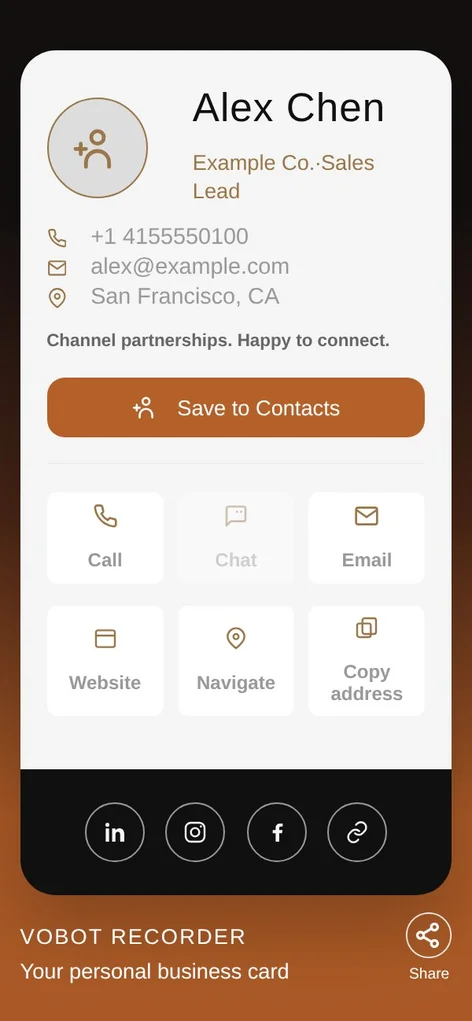
Your card opens in their phone's browser. They can call you, email you, or save you to their contacts.
How to tap so it reads
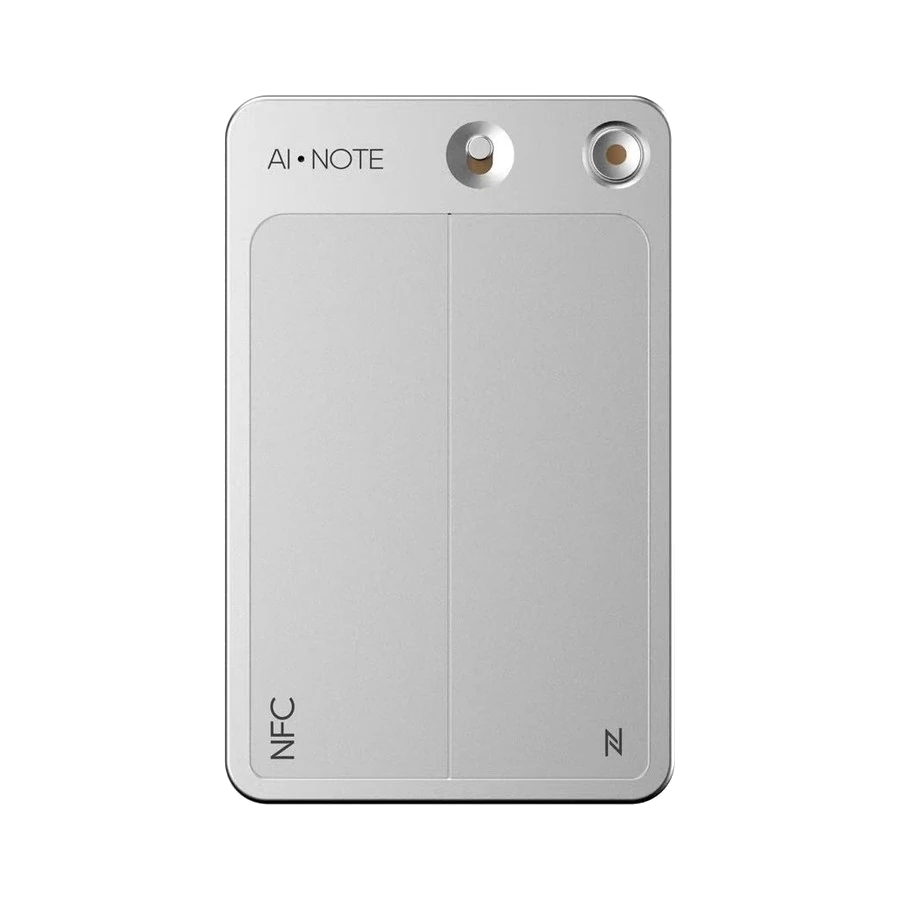 ✓
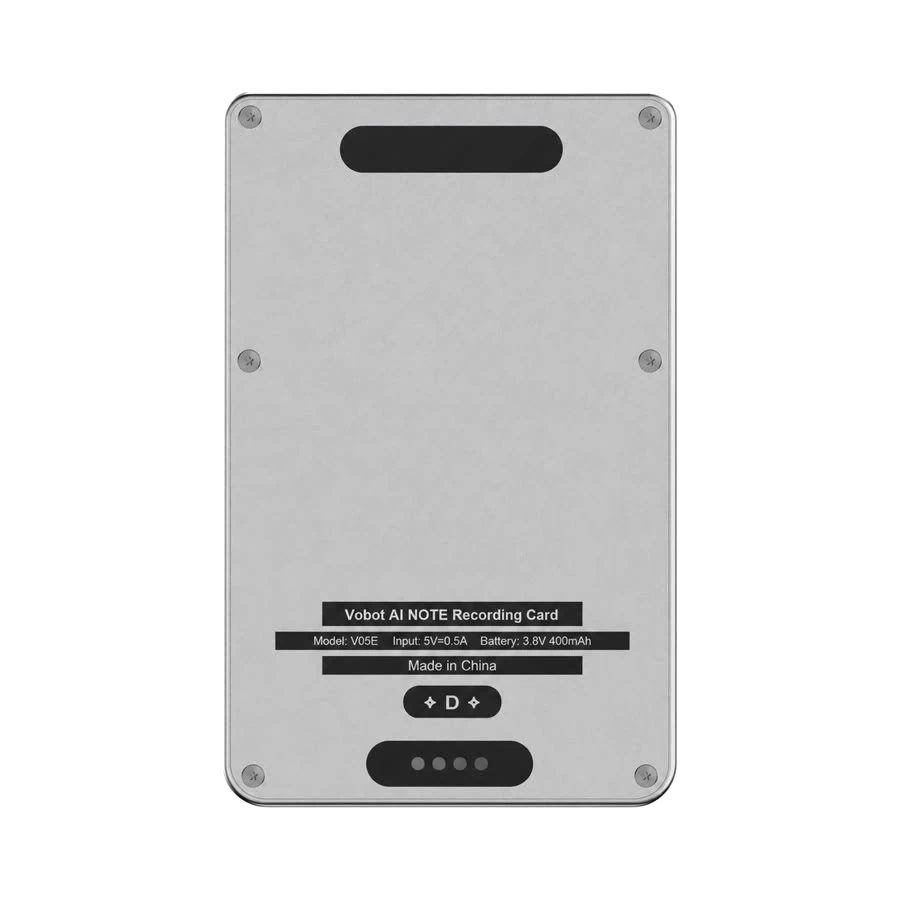 ✕
- Tap the center of the card's front (the side with the REC button and NFC mark). Tapping the back doesn't work.
- If the card is in the magnetic leather case, leave it in. Tap the same spot through the case.
If nothing happens when they tap, see The other person's phone doesn't respond.
What the other person sees
Firmware update
On the home screen, tap the device bar at the top to open "My Device", then tap "Firmware Update". This option only appears when the card is connected to the app.
Before you update
- Update Vobot Recorder to the latest version first.
- The card's battery must be above 50%. If it's lower, the app asks you to charge the card first.
During the update
- Keep the card close to your phone and keep Vobot Recorder open in the foreground.
- Keeping the charging cable connected is recommended.
Need help with firmware updates? See Troubleshooting › Firmware Update.